
Nowadays, use of mobile devices is increasing rapidly. Let us assume that someone is building his website in localhost using Wamp server and want to test his/her application in android phone then how can he/she do it? Or developing android application and backend database is MySQL then how to connect MySQL Database in our mobile. Here in this article, I will provide complete guide on How you can open localhost website on your android phone?
On the task bar go to Wamp server icon -> Apache-> httpd-vhosts.conf and edit the file.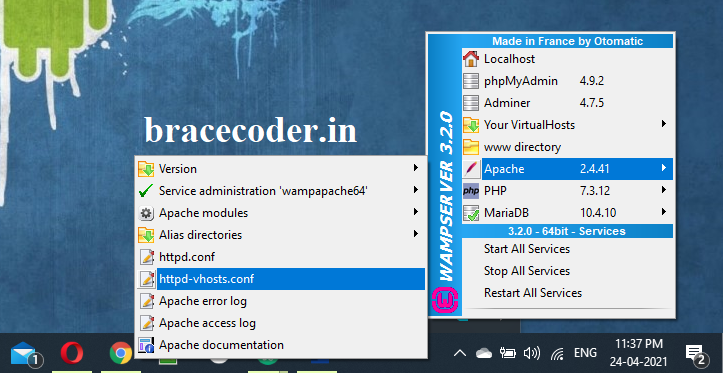 In the file find the text “Require localhost” and replace it with “Require all granted”. Now save and close the file.
Restart Wamp Server.
Now, we have to create inbound and outbound rules in windows firewall or disable firewall to access localhost in mobile device. Here we will go ahead with creating inbound and outbound rules in windows firewall.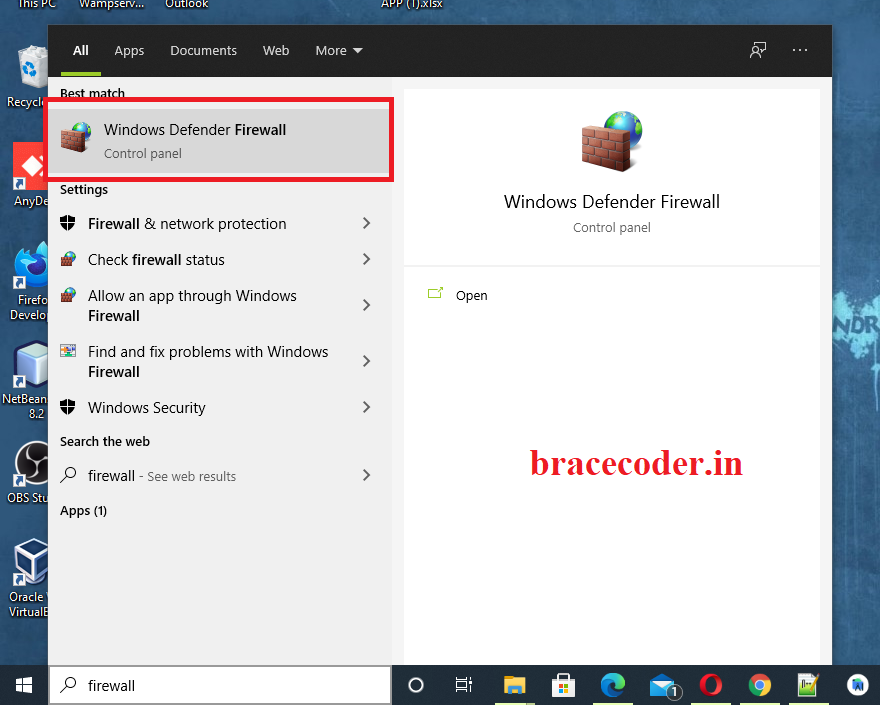
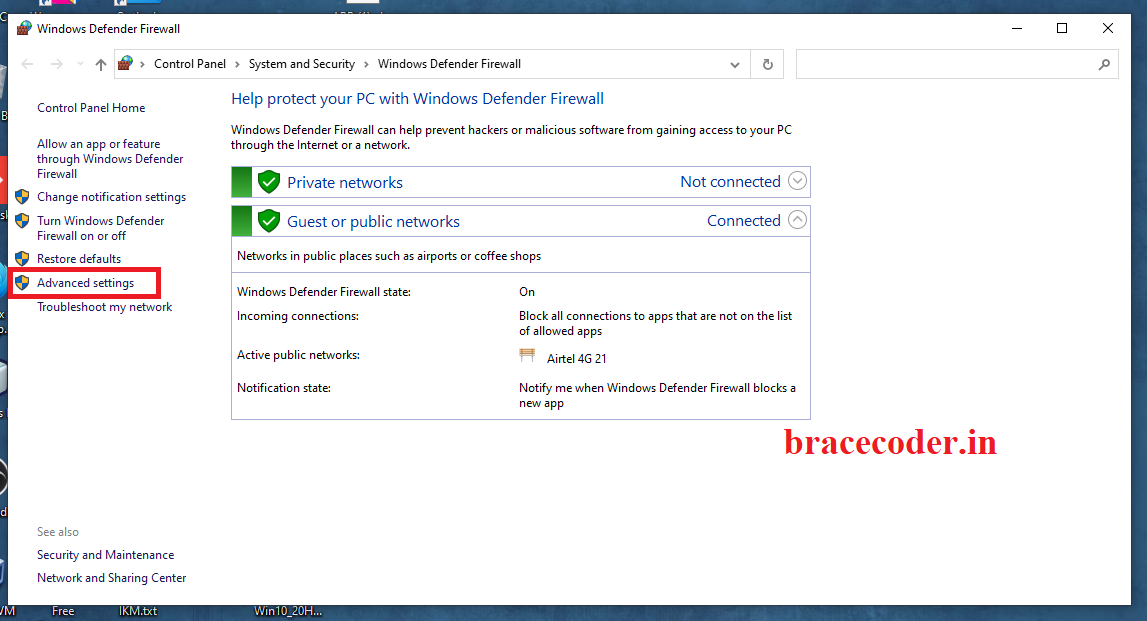 In Windows firewall screen, Click on Inbound rule. As per below image click on New Rule which is located in right sidebar. It will pop up new screen to configure the inbound port.
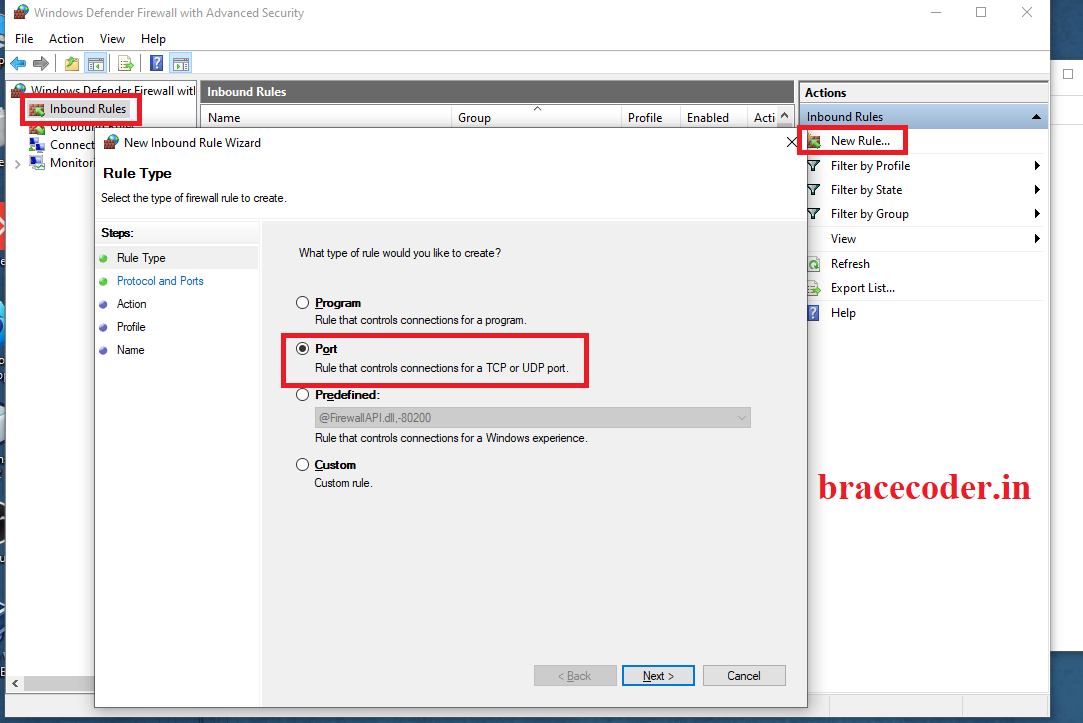 In the configuration wizard, Select Port as per above image in Rules type page and click next.
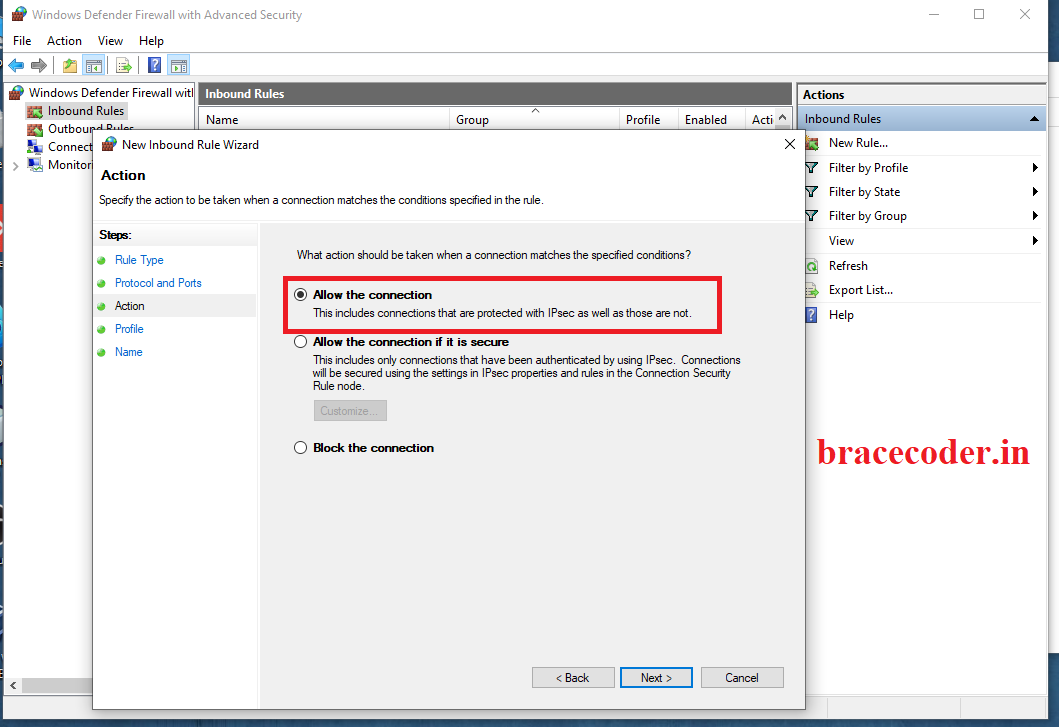
Now Select Port type as TCP and specify port on which your Apache server is running and click next button. In my case it is 80 so i have provided 80.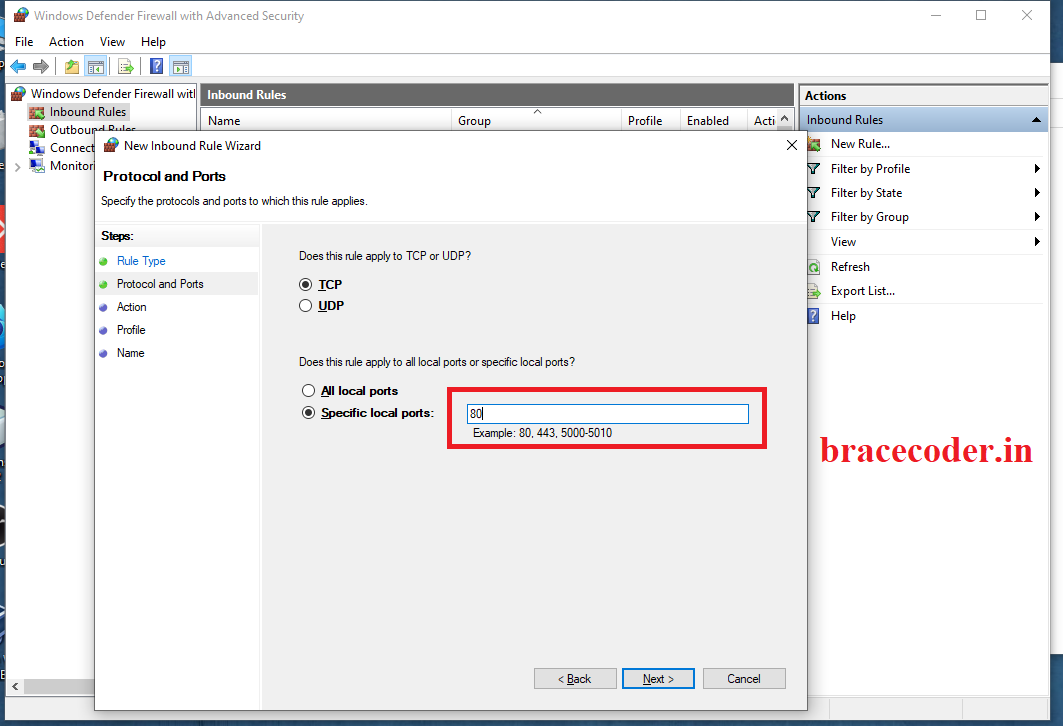 Select “Allow the connection” action as per below image and go ahead with next screen.
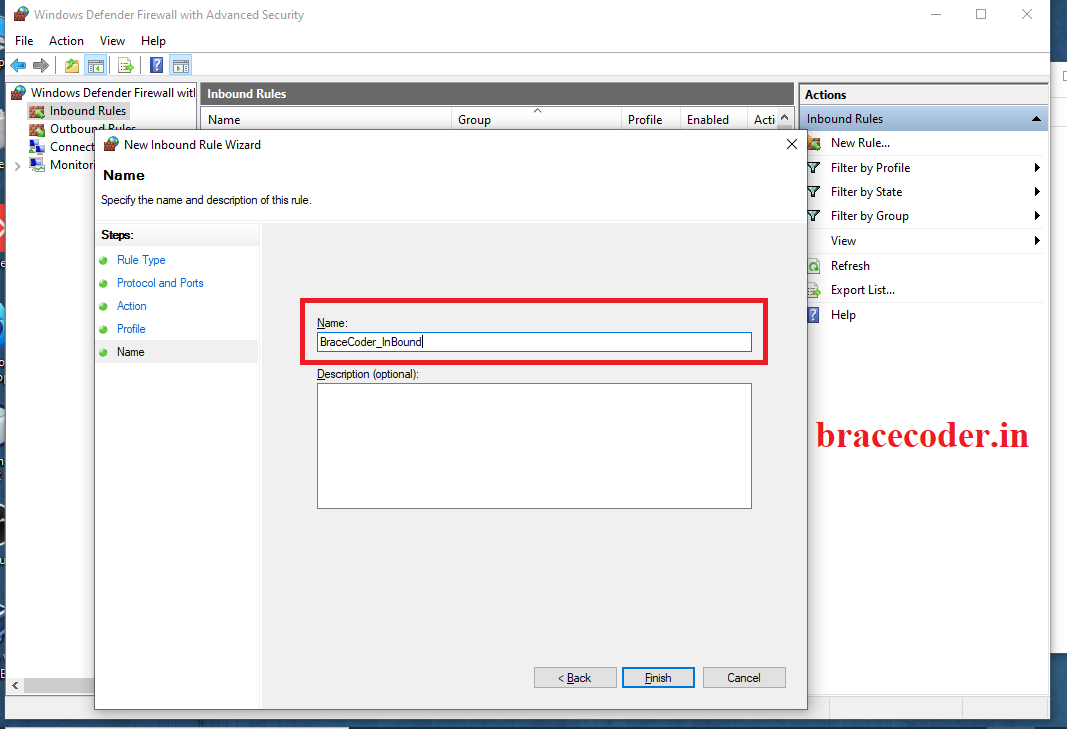
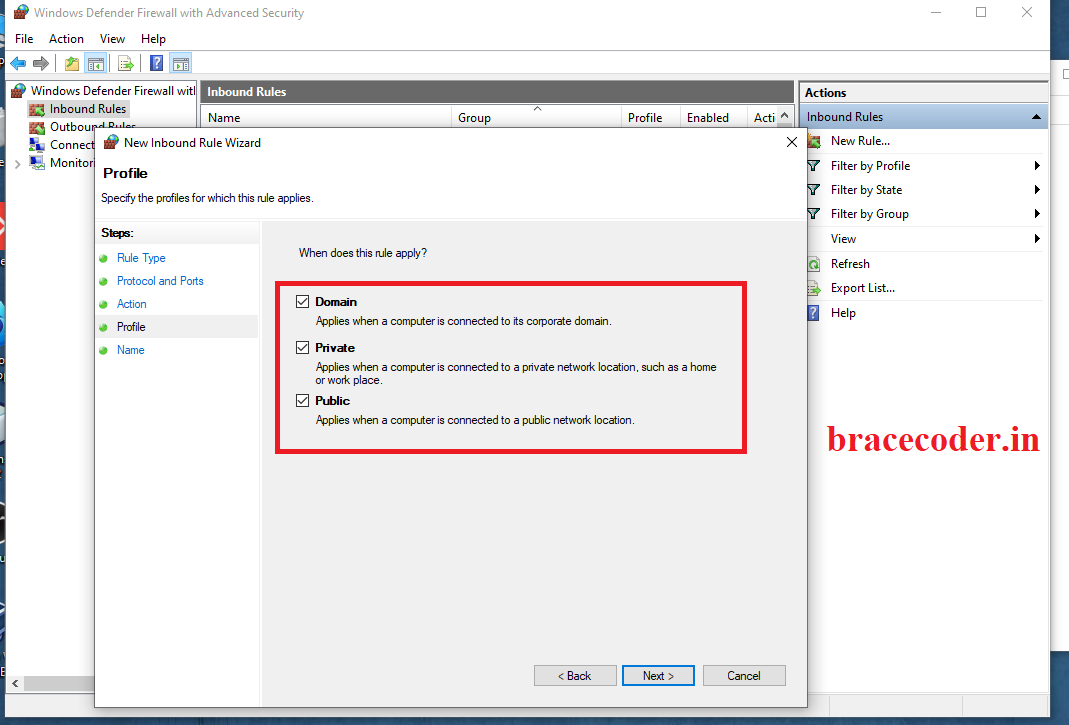 Now provide name of Rule and description and finish the configuration wizard.
 Now Inbound rule is created in windows firewall and using same steps you can go ahead and create outbound rule.
once inbound and outbound rules are setup we have to connect Android phone and desktop in same network to access localhost website or localhost wamp server using mobile phone.
Either we can connect desktop and mobile to same router or we can connect Desktop to mobile phone using USB Tethering/ portable Hotspot
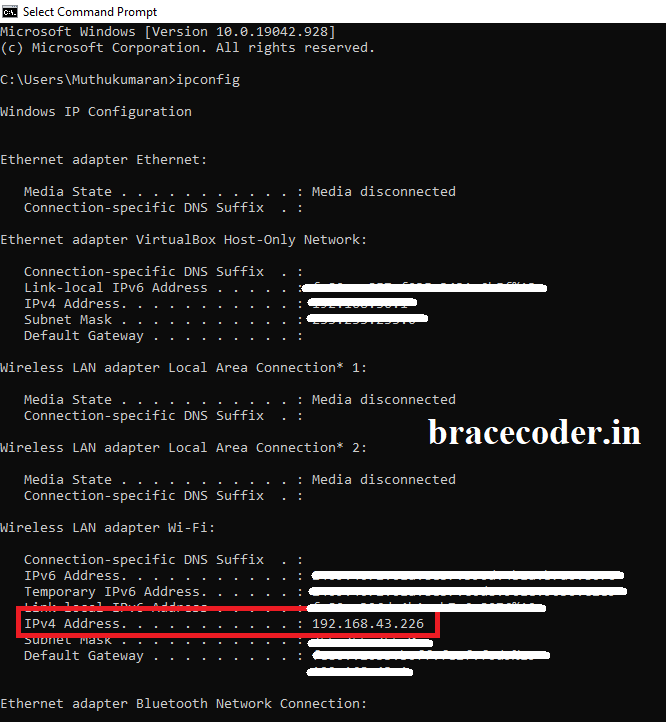
Once connection is established, you have to just find out IPV4 Ip address of your computer
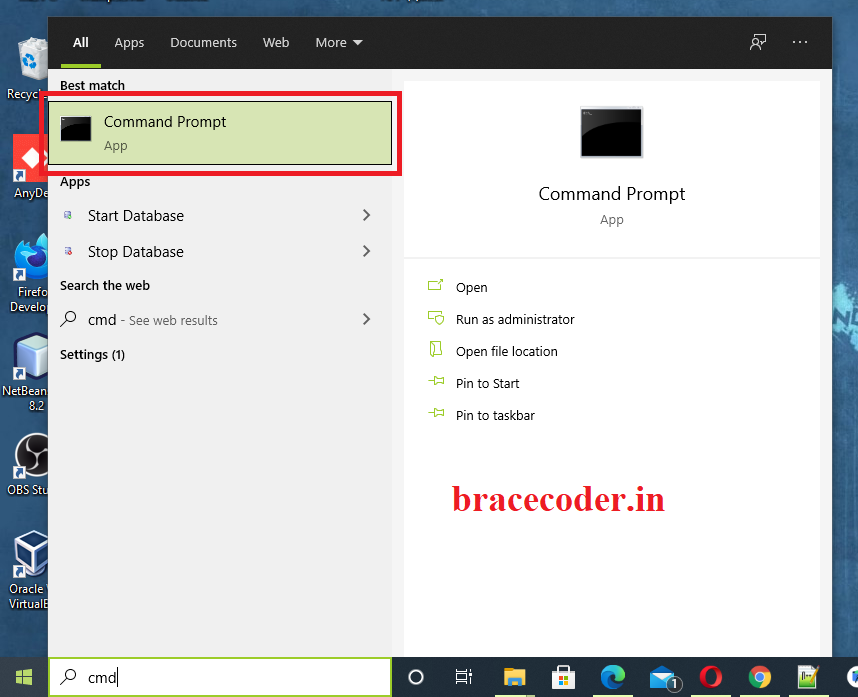
Go to command prompt and execute command “ipconfig”. Note down the IPV4 address and put that ip address in your android phone’s browser window to open localhost in mobile.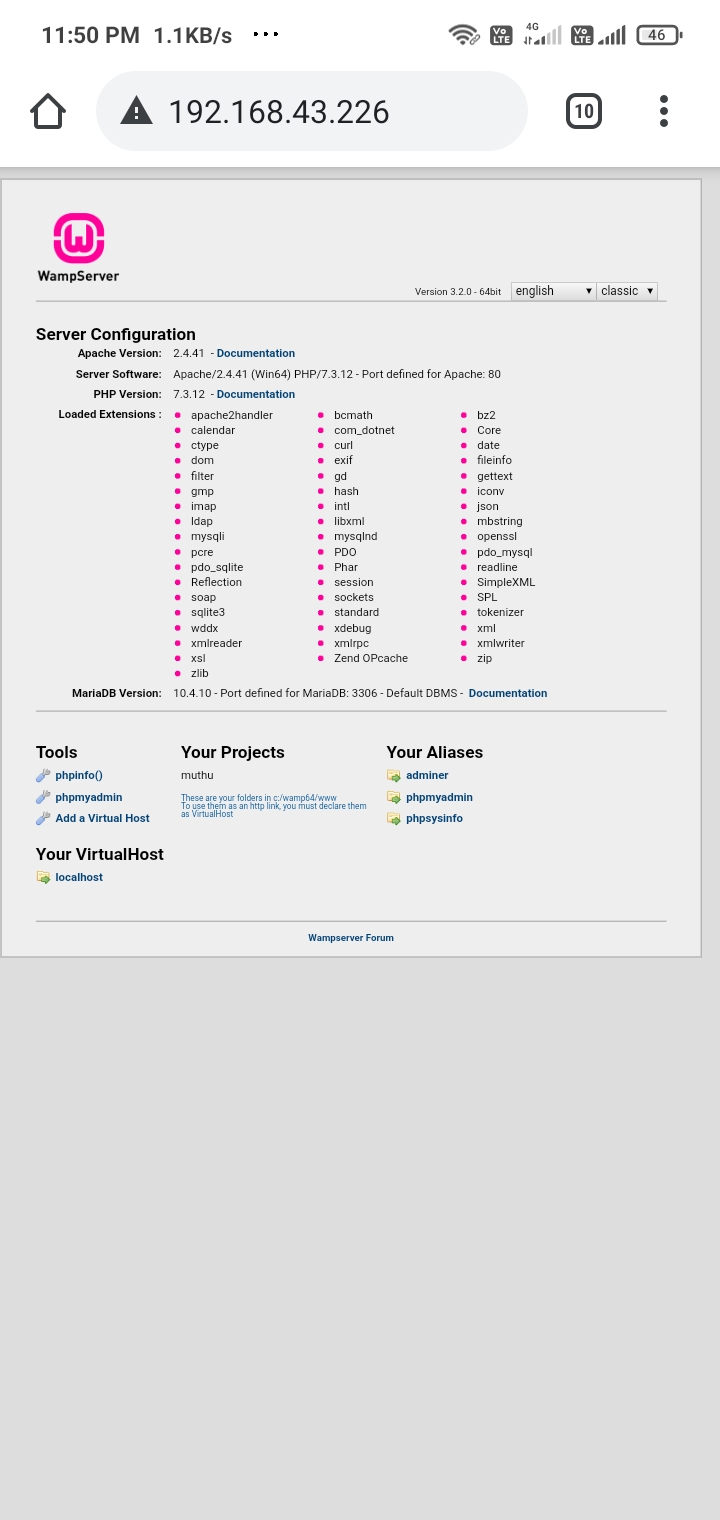
Steps to open localhost website on Android phone
First of all, I assume that You have tested your website completely on desktop and working fine using wamp server in localhostOn the task bar go to Wamp server icon -> Apache-> httpd-vhosts.conf and edit the file.
In the file find the text “Require localhost” and replace it with “Require all granted”. Now save and close the file.
Restart Wamp Server.
Now, we have to create inbound and outbound rules in windows firewall or disable firewall to access localhost in mobile device. Here we will go ahead with creating inbound and outbound rules in windows firewall.
How to create Inbound/Outbound Rules in windows firewall.
Open control panel and search windows firewall in upper right corner search box. Now open windows firewall from search results. On the next screen click on Advanced settings in the left sidebar links.
In Windows firewall screen, Click on Inbound rule. As per below image click on New Rule which is located in right sidebar. It will pop up new screen to configure the inbound port.
In the configuration wizard, Select Port as per above image in Rules type page and click next.
Now Select Port type as TCP and specify port on which your Apache server is running and click next button. In my case it is 80 so i have provided 80.
Select “Allow the connection” action as per below image and go ahead with next screen.
Now provide name of Rule and description and finish the configuration wizard.
Now Inbound rule is created in windows firewall and using same steps you can go ahead and create outbound rule.
once inbound and outbound rules are setup we have to connect Android phone and desktop in same network to access localhost website or localhost wamp server using mobile phone.
Either we can connect desktop and mobile to same router or we can connect Desktop to mobile phone using USB Tethering/ portable Hotspot
Once connection is established, you have to just find out IPV4 Ip address of your computer
Go to command prompt and execute command “ipconfig”. Note down the IPV4 address and put that ip address in your android phone’s browser window to open localhost in mobile.
INFO
I hope above guide is helpful to all of you and you are able to open your localhost website/blog on mobile device as well. Share this awesome article to your friends as well. Have a nice day.
Frequently asked questions
Why change "Require localhost" to "Require all granted"?
By default WAMP's Apache only accepts requests from the same computer. "Require all granted" lets other devices on the network, such as your phone, open the site.
My phone still can't open the site. What should I check?
Make sure the phone and computer are on the same network, the Windows firewall allows the Apache port (80 by default), and you are using the computer's IPv4 address from
ipconfig, not "localhost".Apache runs on port 8080. What address do I use?
Add the port to the address, for example
http://192.168.1.10:8080/, and allow that port in the firewall rules instead of 80.Is it safe to leave "Require all granted" on?
Only on a trusted home or office network. On public Wi-Fi anyone on the network could open your site, so switch it back afterwards, or limit access to your network with
Require ip 192.168.1.

Comments
0Please sign in to leave a comment.
No comments yet
Be the first to share your thoughts!